


When does a Mac GIS conversion tool help?
When you only need to confirm the file and send it out in another format. In that case, the fastest path is to stay in Finder and avoid opening a full GIS project.
Fastest way to convert GIS files on Mac
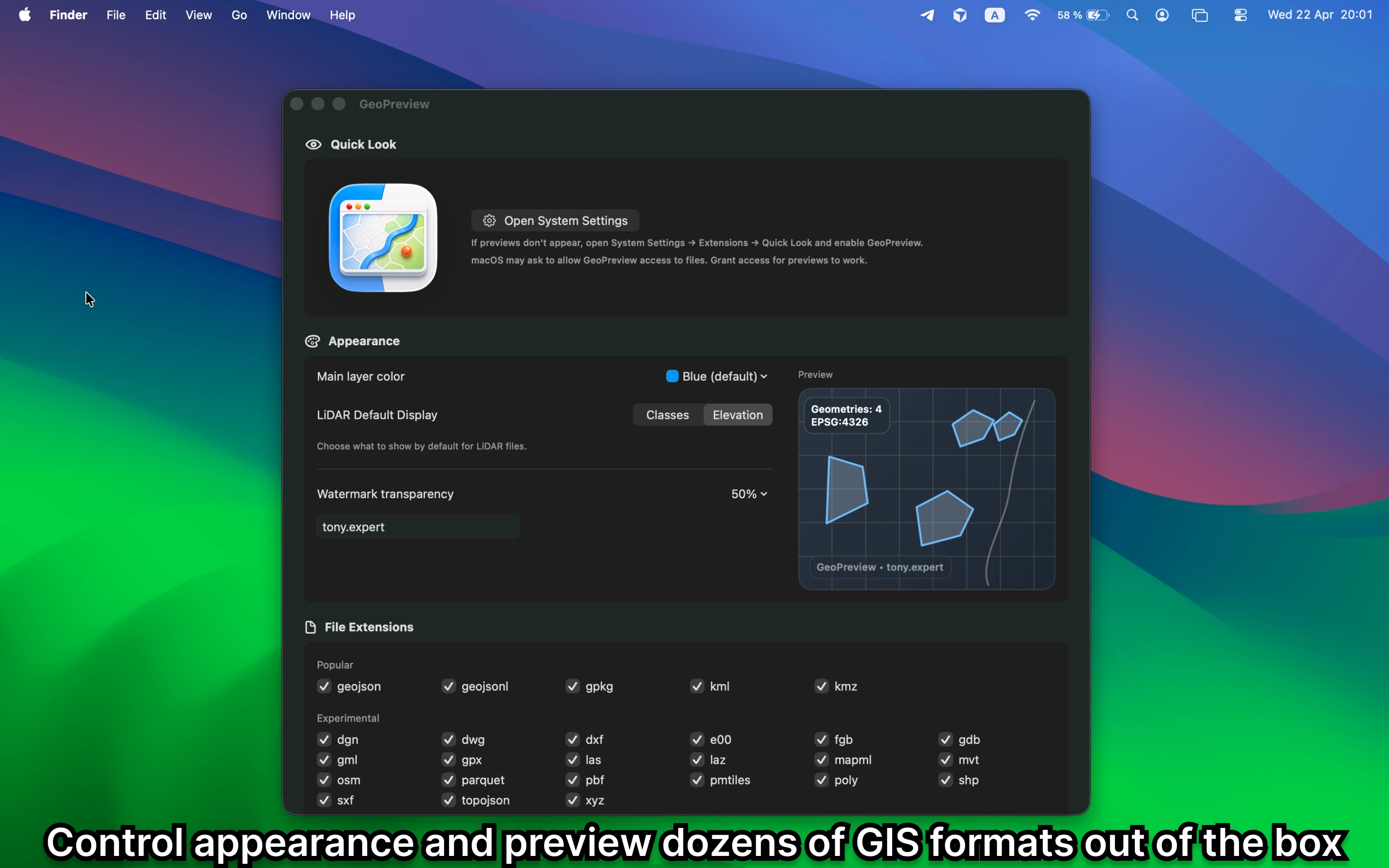
Use GeoPreview to inspect the file first, then trigger the Finder Quick Action to export geodata to another format. That keeps the preview, decision, and lightweight conversion in one macOS-native workflow.
Quick check before you use the file
Before you export, confirm:
- that the source file is the right one and renders correctly
- attributes, layers, or metadata needed for the handoff
- whether the export makes sense before you open another GIS app
Alternative tools
QGIS is the right answer when you need deeper transformation, styling, repair, or analysis. If you just need a simple export after a fast preview, Finder plus GeoPreview is the cleaner path.
How export works
Available export options depend on the file you select. GeoPreview only shows the export actions that make sense for that file, so the Finder menu stays clear and predictable.