


Why Quick Look matters for GIS files
Most GIS review tasks are small. You receive a file, you need to see whether it opens correctly, and then you decide whether deeper work is necessary. Quick Look is the fastest place to answer that question on macOS.
Fastest way to preview GIS files in Finder
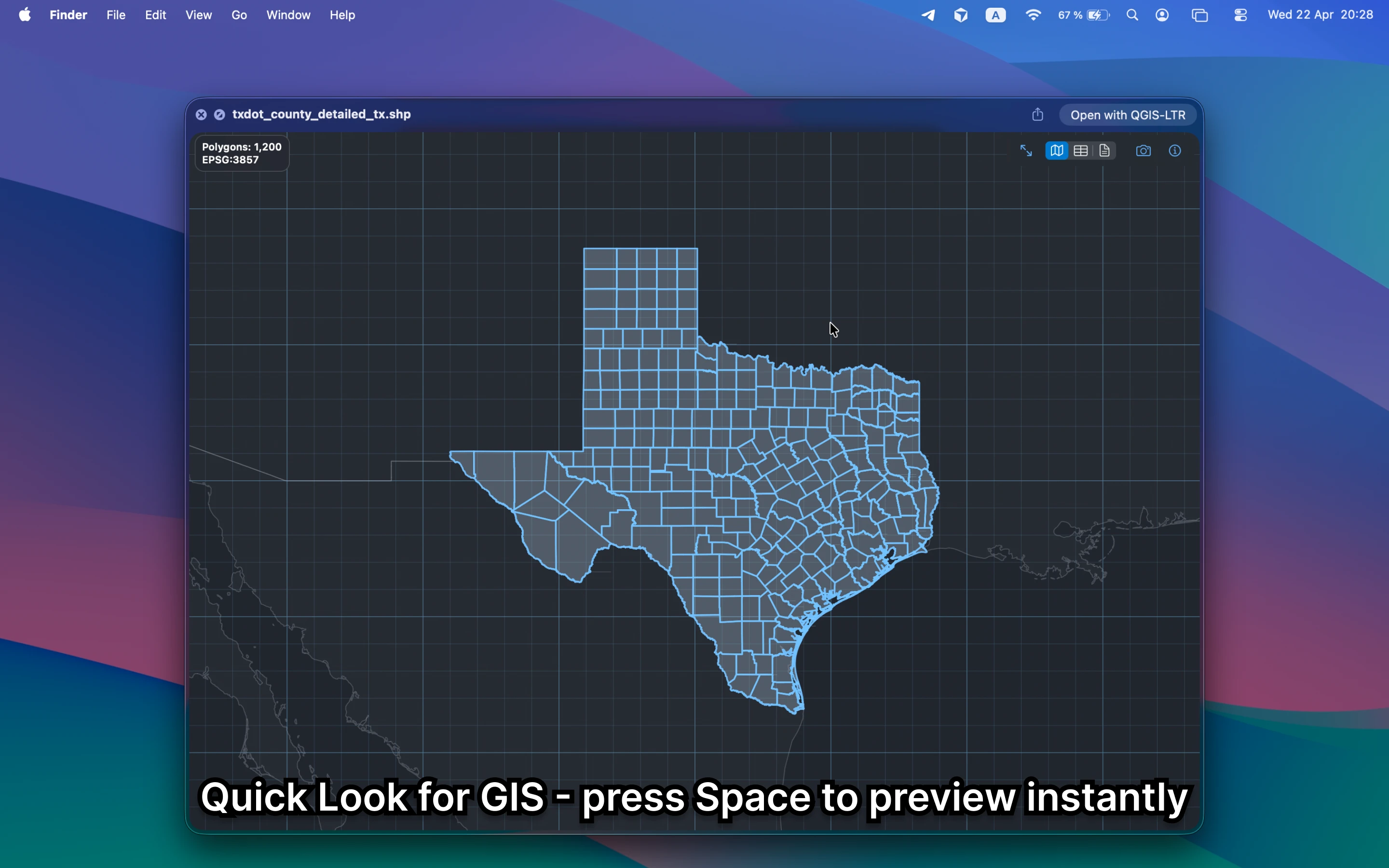
Install GeoPreview, select a supported file, and press Space. The preview stays local, opens inside the normal macOS Quick Look surface, and immediately shows the map, attributes, or metadata that matter first.
Quick check before you use the file
With the Quick Look workflow you can verify:
- whether the file renders at all before you commit to a larger workflow
- basic metadata such as CRS, counts, and bounds
- attributes or layers when the file includes them
Alternative tools
QGIS can open the same files, but it is not the fastest way to answer a Quick Look question. Browser tools also add uploads and context switching to a job that should stay native and local.
Need to convert or export it?
Once the preview looks right, GeoPreview can also handle supported exports from Finder. That keeps a quick check and a simple handoff in the same Mac workflow.