

When can you skip QGIS?
When the work is about inspection, not editing or analysis. If you just need to confirm geometry, coverage, attributes, layers, or metadata, the fastest path is to stay in Finder and avoid opening a full GIS project.
Fastest way to open GIS files on Mac without QGIS
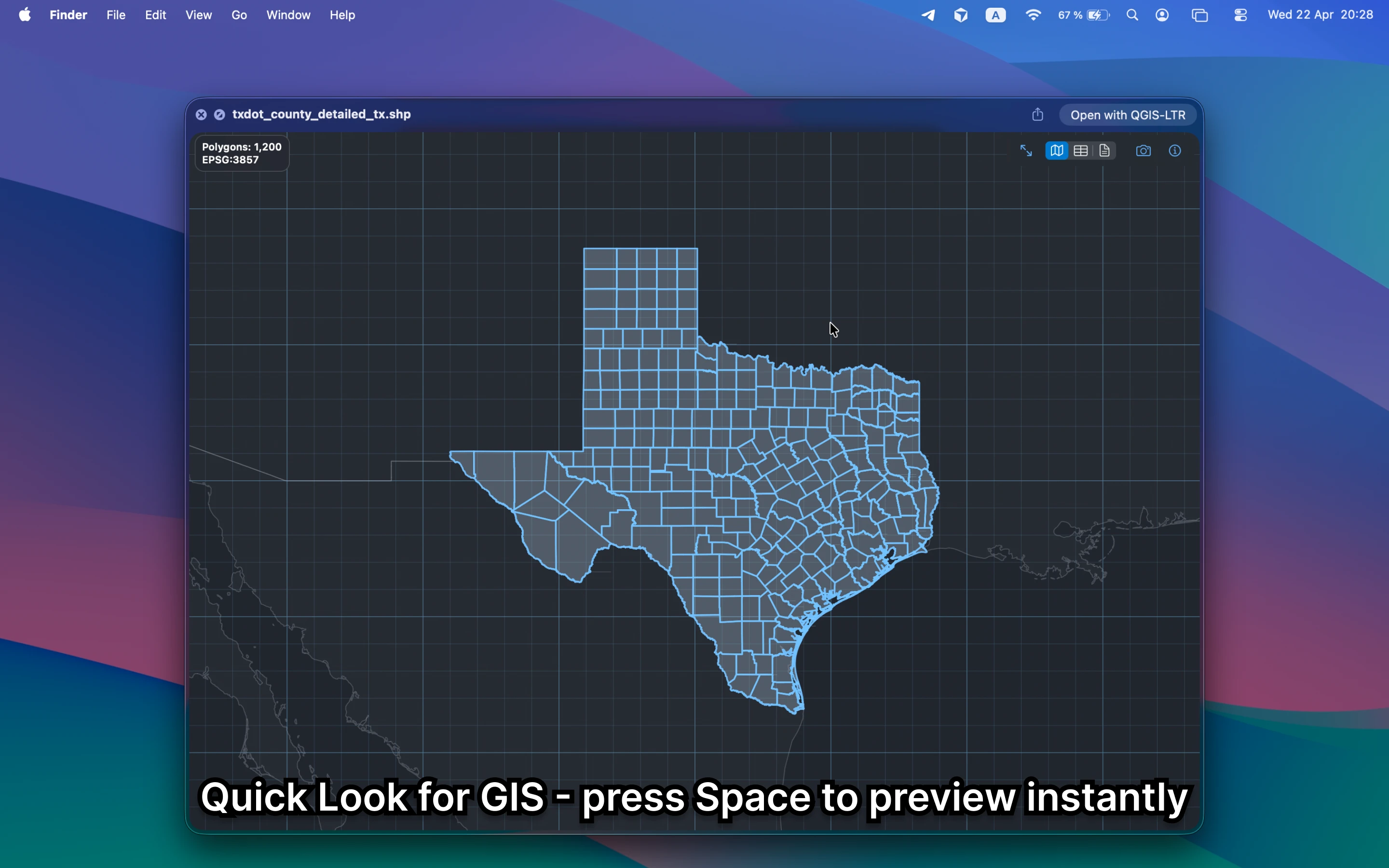
Install GeoPreview, select the file in Finder, and press Space. That gives you a real map preview and the first metadata you need without building a QGIS project for a ten-second check.
Quick check before you use the file
A no-QGIS Mac workflow should let you confirm:
- that the file renders correctly before you open heavier GIS software
- attributes, layers, or dataset structure when the source provides them
- that the file stays local instead of becoming an upload or a full GIS project
Alternative tools
QGIS is still the right answer for analysis, editing, symbology, and repair work. GeoPreview is better when the only goal is to open the file fast, inspect it locally, and decide whether deeper work is necessary.
Need to convert or export it?
After you preview the file, GeoPreview can also handle supported exports from Finder. That keeps a simple handoff fast and avoids a full QGIS session when you do not need one.